
Canvas Parent
InstructureEducation
4.31.25K Reviews
- Version
- 4.14.0
- Installs
- 500.00K
- Age Rating
- Everyone
Screenshots
Our Review of Canvas Parent
 Analysis by Appyee
Keeping up with a child’s schoolwork can be surprisingly difficult when information is spread across classroom conversations, paper notices, email, and several online tools. Canvas Parent is designed to bring that school visibility into one mobile app. I tested it as an education companion rather than as a replacement for the student’s Canvas account, and that distinction matters: its value is mainly in helping a parent see what is happening, notice problems early, and start a useful conversation at home.
Developed by Instructure, this free app is aimed at parents and guardians whose children use Canvas through their school. It is available for Everyone, works on devices running at least iOS 9, and has reached over 500 thousand installs. The current version is 4.14.0, while its overall rating sits at 4.3 from roughly 4.6 thousand ratings. Those figures suggest a well-established companion app, but they do not remove the most important practical question: how much of the experience depends on the way a particular school configures Canvas?
How Canvas Parent feels in everyday school life
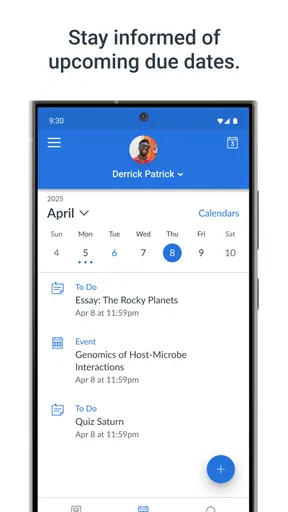
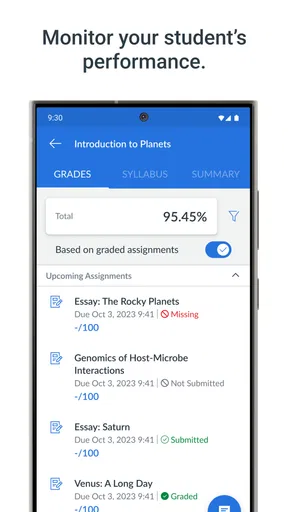
The first useful thing to understand is that this is a monitoring tool. I would not open it expecting the full flexibility a student gets from the main Canvas learning environment. Instead, I see it as a parent-facing window into courses, assignments, grades, announcements, and the general rhythm of schoolwork. That narrower purpose makes the app easier to approach, especially for someone who wants a quick overview without entering every class as if they were the student.
A realistic example is a weekday evening when a child says there is “nothing due.” I can check the relevant course areas, look for upcoming work, and compare that view with what the child remembers. If an assignment is visible but unfinished, the conversation becomes specific: what is the task, when is it due, and is there a reason it has not been started? That is more helpful than a vague reminder to do homework.
The app is also useful for parents who cannot attend every school meeting or keep track of every classroom message. A short check during a commute, lunch break, or after dinner can provide context before contacting a teacher or asking a child for details. I appreciate that this encourages involvement without requiring a parent to sit beside the student for every lesson.
The best way to use Canvas Parent is as an early-warning system, not as a substitute for trust. A missing grade, late-looking task, or unfamiliar announcement should prompt a question, not an accusation. School systems sometimes update at different times, and a parent’s view may not explain every exception. Used calmly, the app supports better conversations; used as constant surveillance, it can make schoolwork feel more stressful.
Signing in and connecting to the right school
The initial setup is closely tied to the school’s Canvas environment. That means the app is not a universal homework planner where I can simply create a family account and add any child. A parent generally needs the correct school or institution connection and the appropriate pairing or login information supplied through that school’s Canvas setup. If the school has not enabled parent access, the app cannot create that access by itself.
This is one of the most important expectations to set before downloading it. The app can be free and still require cooperation from the school. If a parent reaches a login screen and does not know which Canvas address or pairing process applies, repeatedly trying random credentials is unlikely to solve the problem. The practical route is to ask the school’s Canvas administrator or teacher for the exact instructions.
Families with more than one child should also pay attention during setup. The usefulness of a parent dashboard depends on being able to identify which course or student a piece of information belongs to. I recommend checking each child’s name and course list immediately after connecting, rather than assuming the account is correct because the login succeeded. That small check prevents confusion later, particularly when siblings attend the same institution or share similar course names.
What the overview is good at—and what it cannot explain
Canvas Parent works best when I need orientation. I can see the broad academic picture without opening a laptop, and that makes it easier to decide whether I need to investigate further. The app can point me toward a course, assignment, or update that deserves attention. It is less useful when I need to understand the full story behind a grade or submission.
For example, a low score may reflect a quiz, a draft, a missing attachment, or a teacher’s temporary entry. The parent view can make the item visible, but visibility is not the same as interpretation. I still need to ask the student what happened and, if necessary, open the fuller Canvas experience or contact the school. This limitation is not a defect in the narrow sense; it is a consequence of giving parents a simplified view.
I also found that the app’s usefulness depends on teacher habits. If a class consistently posts assignments and updates in Canvas, the parent view can become a dependable routine. If a teacher relies heavily on another platform, paper instructions, or verbal reminders, Canvas Parent may show only part of the child’s workload. Families should therefore treat it as the school’s Canvas record, not automatically as a complete record of every academic obligation.
Changes, current version, and what existing users should notice
The current release is version 4.14.0, and the app itself dates back to August 10, 2016. That history is helpful because it shows this is not a brand-new experiment. In my view, the product’s evolution is best judged by whether it continues to make the parent view dependable and readable as schools use Canvas in different ways. A mature companion app should reduce friction around checking information, switching context, and understanding what needs attention.
For someone already using an older installation, the sensible approach is to update and then review the basics rather than assuming every school workflow will look identical. Check that the correct student remains connected, confirm that course information appears as expected, and look at notification settings so important updates are not buried. An update can improve the app experience, but it cannot correct incomplete information that was never entered into the school’s Canvas course.
I would be careful about interpreting the version number as a promise of a particular new feature. The verified release information establishes the current version, not a complete list of changes or a future roadmap. What I can say from using the current app is that its central role remains clear: provide parents with a practical view of a child’s Canvas-based education. Expectations should stay focused on that job rather than on features found in unrelated family, calendar, or gradebook apps.
Existing users may notice the greatest benefit when they change their routine, not when they simply install an update. Instead of opening the app repeatedly throughout the day, I would choose a short, consistent check—perhaps before the evening homework period—and use it to identify only the items that require action. This avoids turning every notification into an emergency and makes the information easier for both parent and child to use.
Three practical workflows that make it more useful
My first recommended workflow is the “conversation starter” check. Before asking how school went, I look at upcoming work and recent course activity. I then ask about one concrete item rather than listing everything visible on the screen. This is especially useful for younger students who may not remember assignment names, and it avoids making the app feel like an interrogation tool.
The second is a weekly consistency check. At the beginning or end of the week, I compare the general pattern across courses: are assignments appearing regularly, are there several unfinished items, and does one course look unusually quiet? The point is not to calculate a private performance score. It is to spot changes in routine. A sudden cluster of incomplete work may signal confusion, illness, a technical issue, or a need for extra support.
The third is a verification habit for important deadlines. If a major task appears in Canvas, I would ask the student to open the assignment themselves and confirm the instructions, attachments, submission method, and due information. The parent app can tell me that something exists; the student-facing course is the better place to inspect the details. This two-step process is more reliable than trying to manage schoolwork entirely from the parent view.
There is also a useful trade-off for families who share responsibility. One adult can use the app for a broad check while the student remains responsible for reading instructions and submitting work. That division keeps the parent informed without transferring ownership of the coursework. In my experience, it works better than having several adults send separate reminders based on partial information.
Notifications require a little discipline
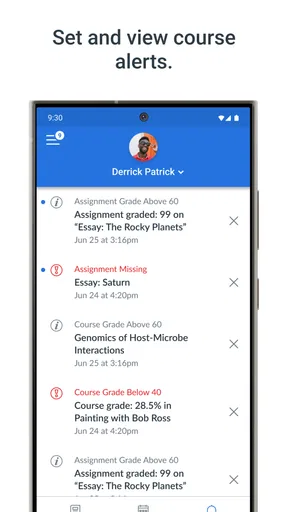
Notifications can make the app feel proactive, but they can also create noise. A parent who enables every possible alert may soon stop noticing them, particularly when several classes post routine updates. I recommend treating notifications as prompts to look, not as complete messages that eliminate the need to open the course context.
When an alert arrives at an inconvenient time, I would avoid immediately forwarding it to the child with a demand. First check whether it concerns a new assignment, a grade change, or a general announcement. Then decide whether it needs attention now or can wait for the normal homework check. This small pause is valuable because school platforms often contain administrative activity that does not require a family response.
Notification habits also matter for privacy and family boundaries. A lock-screen preview may reveal course or assignment information to anyone who sees the device. I would review the phone’s notification display settings, especially on a shared family tablet or a device used by younger children. That is a device-level choice rather than a reason to reject the app, but it is worth considering before relying on alerts.
Where the app falls short compared with alternatives
Compared with a general family calendar, Canvas Parent has the advantage of staying close to the school’s own course information. A calendar app may be better for combining sports, appointments, chores, and homework into one household schedule, but it usually requires manual entry. Canvas Parent is more convenient for checking what has been posted in Canvas, while a calendar remains better for planning the whole family’s time.
Compared with the student’s full Canvas experience, the parent app is simpler but less powerful. That is a benefit when I want a quick overview and a drawback when I need to inspect detailed instructions, participate in course activities, or resolve a submission problem. Parents who want to manage every academic detail themselves may find the limited perspective frustrating. In that situation, the better approach is to use the parent app for awareness and let the student open the main learning environment for the actual work.
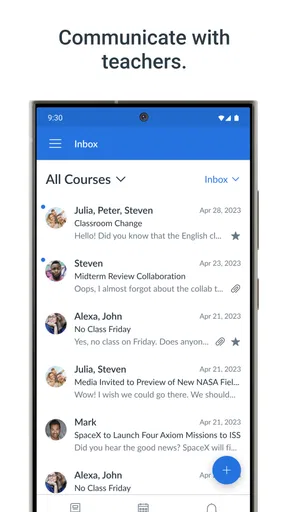
Compared with direct email from teachers, the app can provide a more structured view of course activity, but email may still be the correct channel for a personal explanation. Canvas Parent should not be treated as a replacement for teacher communication. If a grade looks wrong, an assignment is unclear, or a child needs an accommodation, a respectful message through the school’s preferred channel is more appropriate than relying on a dashboard entry.
Families whose schools do not use Canvas should skip this app. It is not a general education tracker, and downloading it will not pull information from other learning systems. It is also a poor fit for a parent who wants a complete household planner, a tutoring platform, or a direct student messaging replacement. The app makes sense when the school’s Canvas use is active and the parent wants a focused view.
Questions parents usually have after trying it
One common concern is whether the app replaces the student’s account. It does not, at least not in the way I would use it. The parent view is designed for visibility, while the student remains the person who reads course material, completes assignments, and submits work. Keeping those roles separate prevents a parent from mistaking an overview for full access.
Another question is whether a parent can rely on it to show every task. The honest answer depends on how consistently each teacher uses Canvas. If a task is never posted there, the app cannot display it. I would therefore combine the app with the child’s own weekly check and any school communication, especially during the first weeks of a new term or after a teacher changes workflow.
Parents also ask what to do when the information looks outdated. First, I would refresh the view and check whether the issue affects one course or the whole account. Then I would ask the student to compare it with the student-facing Canvas view. If both views are missing the same item, the school or teacher is the more useful next contact. This step-by-step check avoids blaming the app for a course configuration issue.
A further question is whether the free price hides a separate subscription. Canvas Parent is listed as free, which makes it easy to try without adding another household expense. The more important cost is time: families may need to learn the school’s connection process and establish sensible notification habits. For most parents, that setup effort is reasonable if Canvas is already central to the child’s schoolwork.
Finally, I would ask whether the app is suitable for every age group. Its Everyone content rating makes it broadly accessible, but the best use still depends on the child’s independence and the family’s approach to privacy. For a younger student, a parent may need to explain what the information means. For an older student, the app works better as a quiet support tool than as a minute-by-minute monitoring system.
What I would watch before making it part of the routine
I would watch the gap between what the school says Canvas should contain and what teachers actually post. That difference determines whether the app becomes a trusted daily reference or merely one source among several. I would also watch whether notifications remain useful after the first few weeks. If alerts become overwhelming, adjusting the phone settings or checking at planned times may produce a better experience.
I would pay attention to how well the app handles a changing family situation, such as a new course, a different school connection, or more than one child. The key test is not simply whether information appears once, but whether I can still tell whose information I am viewing and what action is needed. Clear identity and course context are essential in a parent-facing tool.
Most importantly, I would watch whether using it improves communication at home. If the app helps a child explain a difficult assignment or recognize a missed deadline early, it is doing something valuable. If it only creates repeated arguments over every grade entry, the family routine needs adjusting. The technology cannot decide the right level of parental involvement; it can only make school information easier to see.
My final view is positive but carefully defined. Canvas Parent is a practical, free education app for families whose schools rely on Canvas and want a quick way to stay informed. In my experience, its strongest qualities are focus, convenience, and the ability to turn a vague homework conversation into a specific one. Its limits are equally clear: it depends on school adoption, does not explain every academic detail, and should not replace the student’s responsibility or direct teacher communication.
If that matches your situation, I would recommend trying it and building a calm, predictable checking habit rather than watching it constantly. Canvas Parent is most effective when it supports awareness without taking over the learning process. For a family already working inside Canvas, that balance makes it a worthwhile companion; for everyone else, a general calendar or the school’s own platform may be the better choice.
Verdict
Strengths of Canvas Parent
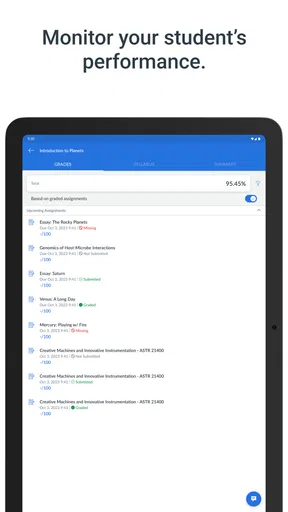
- Easy access to grades, assignments, and teacher announcements
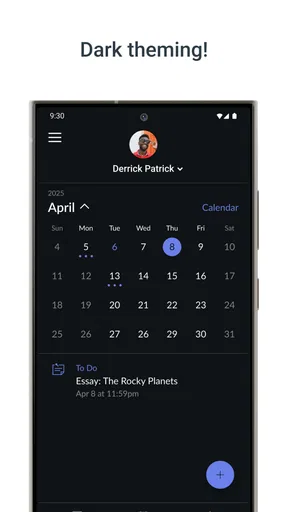
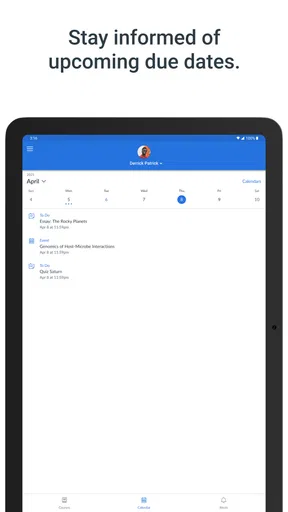
- Clear calendar helps families track upcoming school activities
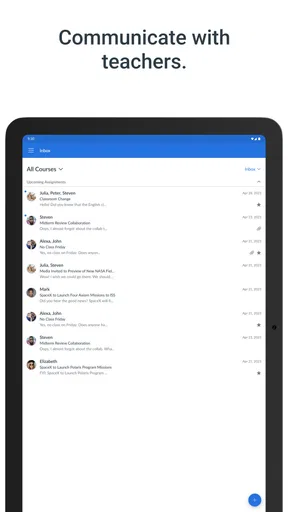
- Supports communication between parents and teachers in one place
- Available on both Android and iOS devices
- Useful notifications help parents stay updated on class changes
Limitations of Canvas Parent
- Some features depend on the school’s Canvas configuration
- Notification settings can be confusing to customize
- Grade updates may be delayed by teacher posting habits
- Requires a school-provided Canvas account or pairing details
- The interface can feel crowded when managing multiple students
Other Releases by Instructure
View All
Canvas By Instructure
Education4.5
Similar Picks in This Category
View All
Duolingo: Language Lessons
Duolingo4.7

Google Classroom
Google LLC2.8

Unacademy: Learn & Crack Exams
Unacademy3.2

Bible App for Kids
Life.Church4.4

Cake - Learn English & Korean
Cake Corp.4.7

Brainly: AI Homework Helper
Brainly4.5
Frequently Asked Questions
What is Canvas Parent, and who is it designed for?
Canvas Parent is a mobile companion app for parents and guardians whose children use Canvas as their school learning management system. After signing in, parents can view important course information, monitor assignment progress, check grades when available, review announcements, and follow upcoming academic deadlines. It is intended to improve visibility into a student’s schoolwork, but it does not replace communication with teachers or access to the full Canvas student experience.
How do I log in to Canvas Parent?
To use Canvas Parent, your child’s school or institution must support the app and provide the appropriate pairing or observer access details. The exact login process may vary, but parents commonly connect their account by using a pairing code supplied by the student or school, or by signing in through the institution’s Canvas portal. If access fails, contact the school rather than creating multiple accounts, since permissions are controlled by the institution.
What information can parents see in Canvas Parent?
The information available depends on the school’s Canvas settings and the permissions assigned to your account. In general, Canvas Parent may show course schedules, assignment titles and due dates, submission status, grades, teacher announcements, calendar events, and course activity. Some grades, comments, files, or learning materials may not appear if the teacher or institution has restricted visibility, so the app should be treated as a progress-monitoring tool rather than a complete copy of the student account.
Does Canvas Parent send notifications about assignments and grades?
Yes, Canvas Parent can provide notifications for selected academic events, such as new announcements, assignment changes, approaching due dates, submitted work, or grade updates, depending on the available notification settings. After installing the app, review both the app’s preferences and your phone’s system notification permissions. Notifications may be delayed or unavailable when the institution has disabled certain features, teachers do not publish updates, or the device has restricted background activity.
Is Canvas Parent free and safe to use?
Canvas Parent is generally available as a free mobile app, although access to the underlying Canvas service depends on the child’s school or institution. The app requires account information and may display sensitive educational data, so download it only from the official Google Play Store or Apple App Store. Use a secure password, avoid sharing pairing codes, keep the application updated, and log out on shared devices to help protect family and student information.
